

How to Activate an eSIM on iPhone 13, 14, and 15 (Updated 2026 Guide)
The iPhone 13, 14, and 15 each handle eSIM a little differently, especially the models sold in the United States, which are eSIM-only (no physical SIM slot). In this updated guide we cover how to install and activate your Gigapanda eSIM on each of these models, with precise step-by-step instructions.
Which iPhones are eSIM-only and which have a physical SIM?
iPhone 14 and iPhone 15 models sold in the United States are eSIM-only devices, they have no physical SIM tray. The very same models sold in the rest of the world (including Latin America, Europe, and Asia) come with a physical SIM tray AND eSIM support at the same time.
If you bought your iPhone in Peru, Mexico, Argentina, Spain, or any other country outside the US, your phone has a physical tray AND eSIM. Perfect for travelers who want to keep their home SIM active while using their Gigapanda eSIM for data at their destination.
How to activate an eSIM on iPhone 13
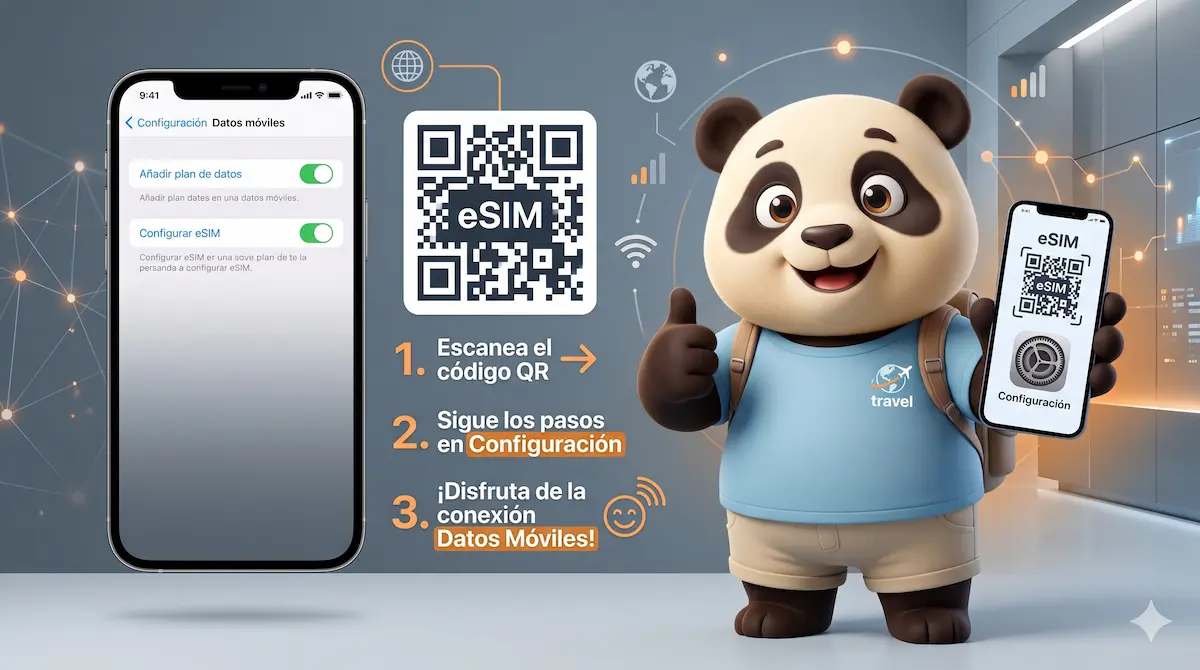
Step 1: Go to Settings → Cellular → Add eSIM.
Step 2: Select “Use QR Code”.
Step 3: Scan your Gigapanda QR code from the email (open it on another device or print it out).
Step 4: When “Cellular Plan Activated” appears, tap “Continue”.
Step 5: Choose a label for the plan (for example: “Gigapanda Europe”).
Step 6: Set how to use each line: “Primary” for your physical SIM, “Secondary” for your Gigapanda travel eSIM.
How to activate an eSIM on iPhone 14 and 15
The process is identical to the iPhone 13. The only difference is that on eSIM-only models (sold in the US) you’ll have multiple eSIM plans and no physical SIM option. Setting up your “Cellular Data” line is even simpler, because only eSIMs are available.
Choosing which line uses data on your iPhone
Once the eSIM is installed, go to Settings → Cellular → and under the lines section select your Gigapanda eSIM as your cellular data line. Turn off “Data Roaming” on your primary SIM to avoid unexpected charges from your home carrier.
What is the “confirmation code” when installing an eSIM?
Some eSIM providers ask for an extra confirmation code during installation. This code is usually sent by SMS to the phone number registered on your account, or it appears in your purchase confirmation email.
Need a hand with your iPhone? Gigapanda support is available 24/7 at gigapanda.com/help.