

How to Install an eSIM on Android: Step-by-Step Guide (2026)
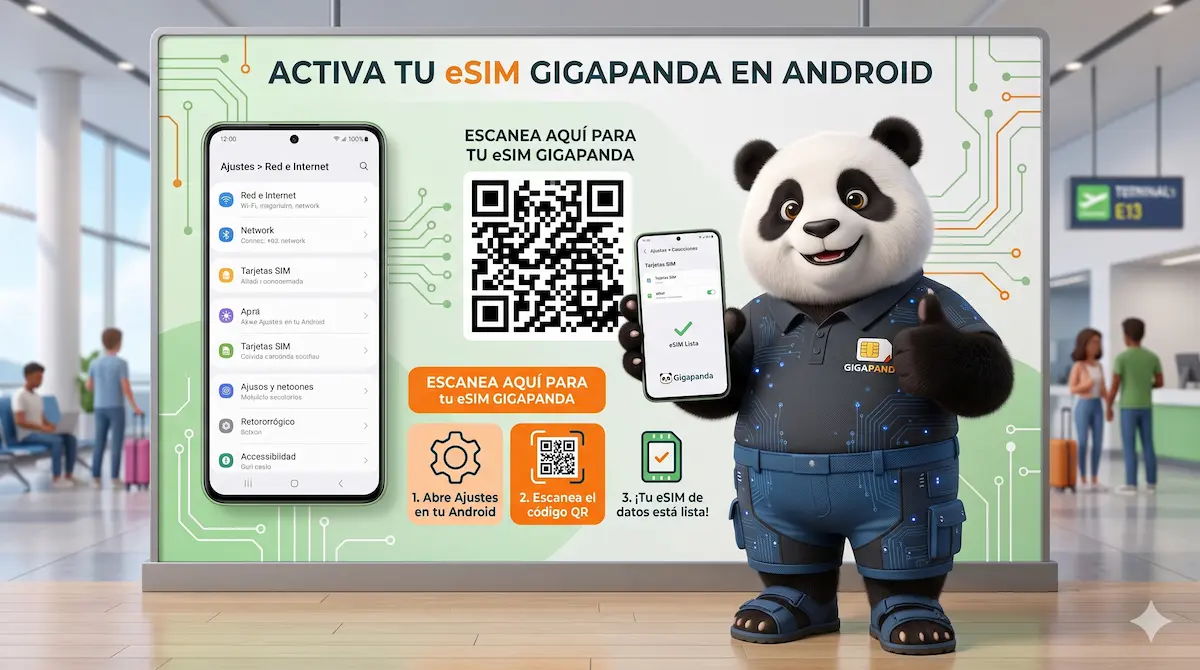
Installing an eSIM on Android is a simple process that takes less than 5 minutes. The steps vary slightly depending on the manufacturer — Samsung, Google Pixel, Motorola and Xiaomi each have their own menus — but the principle is the same across the board. In this guide, we show you how to do it on the most popular models.
Before you start: check your phone’s compatibility
Not every Android phone has eSIM. Compatible models include the Samsung Galaxy S20 and later, Samsung Galaxy Z Fold/Flip from the first generation, Google Pixel 3 and later, the Motorola Razr 2019 onward, and many others. To check: go to Settings → About phone → Status → and look for “EID”. If a 32-digit number appears, your phone has eSIM.
How to install an eSIM on a Samsung Galaxy
Step 1: Open the Settings app and tap “Connections”.
Step 2: Tap “SIM card manager”.
Step 3: Tap “Add mobile plan”.
Step 4: Select “Scan carrier QR code”.
Step 5: Point the camera at the QR code you received in your Gigapanda email.
Step 6: Confirm the installation. The profile will download in a few seconds.
Step 7: Choose when to activate the eSIM — you can leave it inactive until you arrive at your destination.
How to install an eSIM on a Google Pixel
Step 1: Go to Settings → Network & internet → SIMs.
Step 2: Tap the “+” icon to add a SIM.
Step 3: Select “Don’t have a SIM?” or “Download a SIM instead”.
Step 4: Scan your Gigapanda QR code.
Step 5: Confirm and wait for the profile to download (10-30 seconds).
Step 6: Set the eSIM as your mobile data line when you arrive at your destination.
What if the QR code won’t scan?
If the camera won’t pick up the QR code, try these fixes: make sure you have good lighting, adjust the distance between the phone and the code (about 20 cm / 8 inches is ideal), or wipe the camera lens with a soft cloth. If you’re still stuck, most providers also include a manual activation code you can enter directly.
Ready to get connected? Get your Gigapanda eSIM and follow these steps to set it up on your Android in minutes.
Frequently asked questions
Can I keep my physical SIM and my eSIM active at the same time?
Yes. Android handles this as Dual SIM. You can choose which SIM handles data and which one takes calls. The usual setup for travelers is keeping the physical SIM for calls and WhatsApp, and using the Gigapanda eSIM for data at the destination.
Will a factory reset erase my eSIM?
Yes. If you do a factory reset, eSIM profiles are deleted. Keep the original QR code or activation code somewhere safe. If you need to reinstall, contact Gigapanda support at gigapanda.com/help.