

How to Install an eSIM on iPhone: Step-by-Step Guide (2026)
Traveling without internet is like flying without GPS: technically possible, but needlessly complicated. If you have an eSIM-compatible iPhone, you can be connected in minutes, without hunting for a local store or standing in line at the airport. In this guide, we explain exactly how to install an eSIM on your iPhone, step by step.
What is an eSIM and why use one?
An eSIM is a digital SIM card built directly into your iPhone. Unlike physical SIMs, you don’t need to insert any chip: you activate your data plan by scanning a QR code and that’s it. You can have up to two lines active at the same time, your local number and your travel eSIM: without removing anything from your phone.
Is my iPhone compatible with eSIM?
Every model from the iPhone XR onward is eSIM-compatible. That includes:
- iPhone XR, XS, XS Max
- iPhone 11, 12, 13, 14, 15, 16 and 17 (all models)
- iPhone SE (2nd and 3rd generation)
Important: your iPhone must be unlocked (not tied to a carrier). If you bought it on a contract, check with your carrier that it’s unlocked before continuing.
How to install your Gigapanda eSIM on iPhone: step by step
Step 1: Buy your plan before you travel
Go to gigapanda.com, choose the country or region you’re traveling to, and select the plan that best fits your travel days. You’ll receive an email with your QR code within seconds.
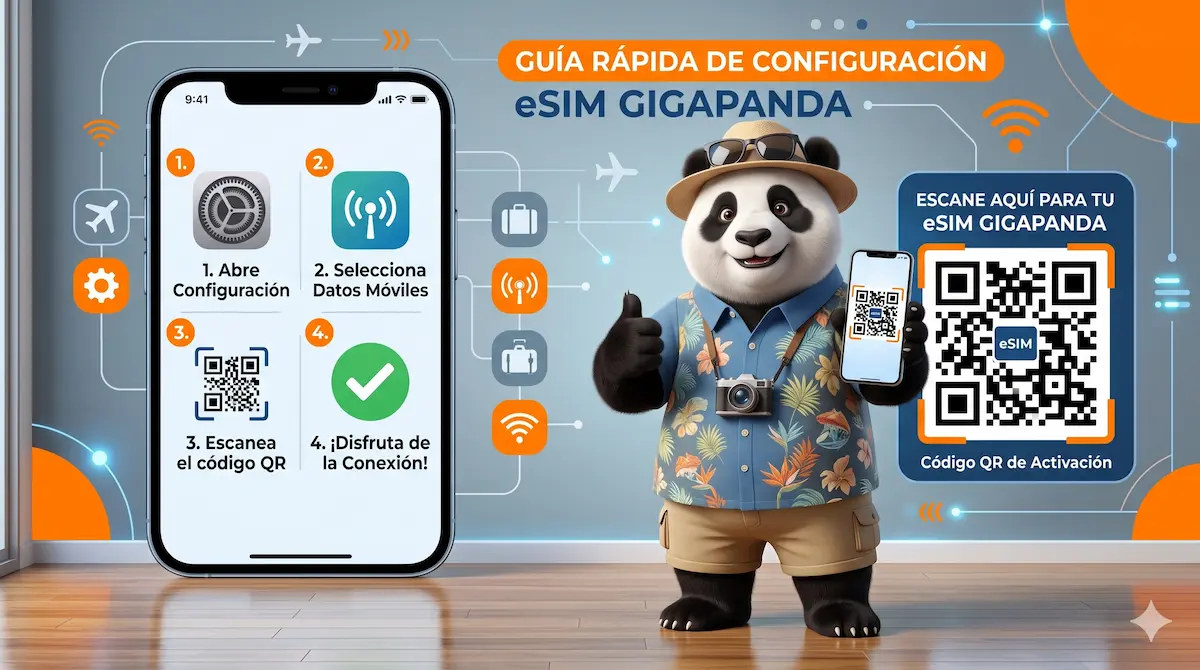
Step 2: Open Settings on your iPhone
Go to Settings → Mobile Data → Add Data Plan. On the iPhone 16 and recent models, the path may be Settings → Cellular → Add eSIM.
Step 3: Scan the QR code
Select “Use QR Code” and point the camera at the code you received by email. If you’re reading the email on the same phone, you can enter the details manually by tapping “Enter Details Manually”.
Step 4: Confirm the installation
Your iPhone will ask you to confirm adding the new plan. Tap “Add Data Plan”. The process takes less than 30 seconds.
Step 5: Activate the eSIM when you arrive at your destination
Install the eSIM at home on Wi-Fi, but activate it when you arrive. Go to Settings → Mobile Data, select your Gigapanda plan and turn on “Mobile Data”. Also make sure to enable “Data Roaming” if that option appears.
Tips to get the most out of your eSIM
- Install before you leave: airport Wi-Fi is slow and the process can fail.
- Toggle airplane mode on and off if the eSIM doesn’t connect automatically when you arrive.
- Keep the email with the QR code in case you need technical support.
Questions about the installation? Our team is available 24/7 at gigapanda.com/help.
Frequently asked questions
Do I need an internet connection to install the eSIM?
Yes, you need Wi-Fi or mobile data to download the eSIM profile. That’s why we recommend installing it before you leave your country.
Can I use my local number and the eSIM at the same time?
Yes. The iPhone supports two active lines simultaneously. You can take calls on your usual number and use Gigapanda data to browse, with no extra roaming charges.
How many times can I scan the QR code?
The Gigapanda QR code is single-use. If you need to reinstall the eSIM, contact our support team at gigapanda.com/help and we’ll send you a new one at no cost.
Does it work in every country?
Gigapanda has coverage in more than 160 destinations. You can check whether your country is available in our shop.